
Reconciliation with Amazon Business - User guide


Overview
Reconciliation is the process of matching Amazon Business transactions with your internal records to check that all information matches: All items are received, invoices align, and charges are accurate. Amazon Business provides a suite of tools that help you access the information you need for reconciliation. These solutions can help you save time on end-of-month reconciliation tasks by automating data gathering, receipt tracking, and charge identification, so you can focus on strategic activities.
Prerequisites
Before using Amazon Business reconciliation tools, ensure you have an active Amazon Business user account. Your account requires the admin role to set up account configurations, such as tax exemptions and Business Order Information (BOI). The finance role is required to review financial information, such as invoices and account balances. For more information, see Get started with your business account.
Verify that you have the proper role enabled to access the data you need:
Reports: Top-level group admins and finance users can access analytics for the entire account. Group and sub-group admins and finance users can see analytics for their group and sub-group’s buying history. Requisitioner users can only access data for their own purchases.
Invoices, credit memos, and balances: Admins and finance users can access this data.
Note: Requisitioner users can only view report data for their own purchases. Month-end reconciliation should be run by an administrator or finance user at the account or group level you need to close.
Configuration
Before you start managing reconciliation information in Amazon Business, configure the following sections of your account to help ensure that your reconciliation data functions as you expect:
BOI fields: BOI fields allow you to collect critical order information from buyers during checkout, such as purchase order numbers, cost centers, and project codes. Defining BOI fields helps ensure you can match each order to the business need. For example, you can require all buyers to identify the cost center associated with a purchase before placing an order. BOI information then populates across your reports, purchase documents, and API calls. For more information, see Set up business order information fields.
Tax exemptions: The Amazon Tax Exemption Program (ATEP) allows your organization to make eligible tax-exempt purchases. If applicable, enroll in ATEP to make eligible purchases tax-exempt, helping avoid unexpected tax charges. For more information, see Enroll in the Amazon Tax Exemption Program (ATEP).
Account structure: Amazon Business accounts are structured by groups. A user’s group and rule determine their access to reconciliation data. If a user is added to a specific sub-group for an account, they can only view data at that sub-group level. If a user is added to a top-level account, they can see purchasing data and invoices for the whole account. Ensure that all business users are assigned to the appropriate group and role needed for their desired scope. For more information, see Add people to your business account.
Receiving status: If your organization doesn’t already have a central receiving system, you can use 3-Way Match (3WM) to indicate if an order is Pending, Received, Partially Received, or Missing. Using 3WM helps you reduce payment errors by checking that your purchases match what you ordered, received, and were billed for. The receiving data you define with 3WM populates in your reports, invoices, and API calls. For information about enabling 3WM, see Enable Receiving (3-Way Match).
Invoice template setup: If you pay using invoices with Business Credit Account (BCA), you can create invoice templates to configure how details such as billing addresses, invoice frequency, and invoice recipients are handled. Note that invoice frequency affects your document volume. You can set the frequency to deliver invoices per order or consolidated daily, weekly, biweekly, or monthly. Changes to invoice frequency apply from the next billing cycle. To set up invoice templates with BCA, see Set up Business Credit Account.
Available reconciliation data sources
Amazon Business provides reconciliation data through the following tools:
Reports
Amazon Business Analytics reports provide raw data about your organization’s Amazon Business orders. Several reporting features are specifically built for reconciliation. The Orders report summarizes your order history at the line-item level, helping you match purchase orders with items your organization has ordered and received. The Reconciliation report contains raw credit card payment information, such as the transaction date, type, amount, and payment instrument, so you can match payment data with your records. The Business Credit Account (BCA) report provides information about your invoice-based transactions.
APIs
The Amazon Business Reconciliation Application Programming Interface (API) allows you to receive business transaction information programmatically. By using this API, you can access your transaction data directly in internal or third-party systems outside Amazon Business, such as Quickbooks. You can build your own custom integration with the API, or you can use a pre-built connection from one of Amazon Business’s third-party development partners.
Enhanced transaction data
Amazon Business supports Level 3 (L3) transaction data transmission for credit card payments. This means that you can enhance your card statements to include additional data, such as shipping addresses, order IDs, product codes, item descriptions, and tax amounts. You can use this information to effectively match line items in your credit card statements with items in your purchasing history. To access L3 data in your transaction statements, request your issuing bank to enable L3 data transmission.
Reconciliation workflows by payment method
Whenever a buyer places an order, Amazon Business processes the shipment and issues a transaction document. The next steps vary depending on the payment method used:
Business Credit Account
For BCA, the transaction document is an invoice. Reconcile by matching each invoice to its purchase order and to the receipt for the delivered items. Because receiving happens before payment, confirm items are received first, match the invoice, and then confirm payment. While confirming payment, ensure that the payment is allocated to invoices as you’d expect and on time. Misallocated payments can cause data mismatches.
Credit and purchasing cards
For card payments, the transaction document is a printable order summary (US) or a VAT invoice (EU), downloadable from Your Orders or via Download order documents in Amazon Business Analytics. Reconcile by matching your card statement to your Amazon Business order data. Use the Charge Identifier column of the Orders and Reconciliation reports to match a transaction or charge in your reports to a charge ID in the transaction description text in your card statement. If your bank transmits Level 3 data, you also get line-level detail on the statement itself such as the order number, providing additional data to help matching.
Mixed payment methods
If you use both BCA and credit cards, filter your analytics tools for each payment method and reconcile the two streams separately: invoices to purchase orders and receipts for BCA, and card statements to order data for card payments.
Step-by-step reconciliation process
Follow these steps to access the data you need for reconciliation directly from Amazon Business:
1. Collect reconciliation data
Gather purchasing data from Amazon Business to use in the reconciliation process. You can access detailed purchasing information by accessing raw data reports in Amazon Business Analytics and order documentation from the Your Orders, Your Invoices, and Analytics pages.
Amazon Business Analytics
Amazon Business Analytics reports provide raw data about all Amazon Business orders across your organization. By reviewing your reports, you can access detailed information about each order. To access and manage your raw data reports:
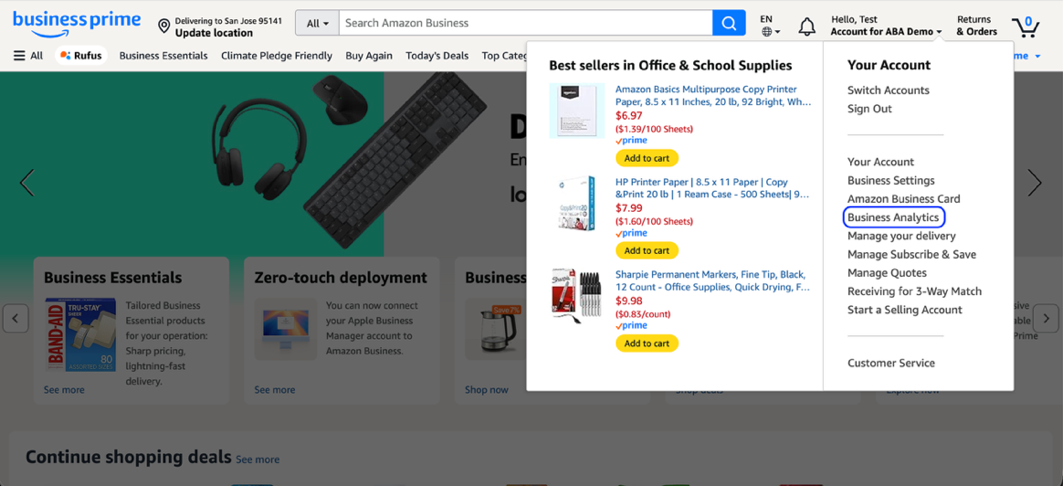
In your Amazon Business account, open the Your Account dropdown menu > Select Business Analytics. The next screen displays the Amazon Business Analytics home page.
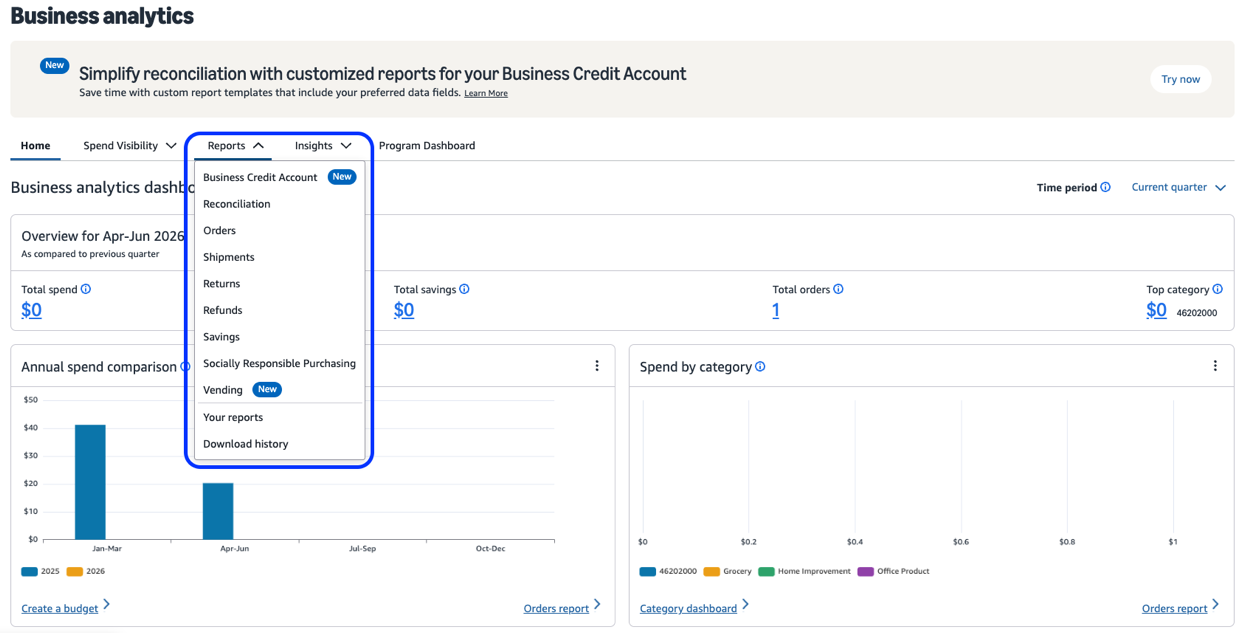
In the Reports dropdown, select the Orders, Business Credit Account, or Reconciliation reports.
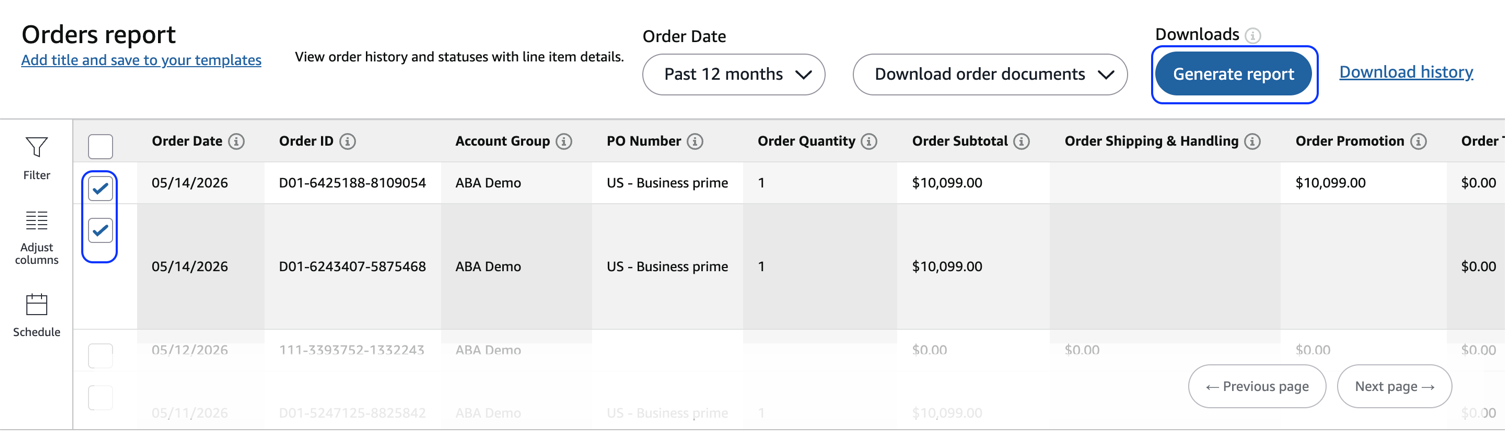
Filter orders to the desired date and time. For example, if you are doing end-of-month reconciliation, filter the time range to the last month.
Optionally, select Generate report to download a raw CSV version of the report you can open in your preferred spreadsheet application, such as Excel.
Purchase documents
Amazon Business provides three primary methods to access your purchase documents:
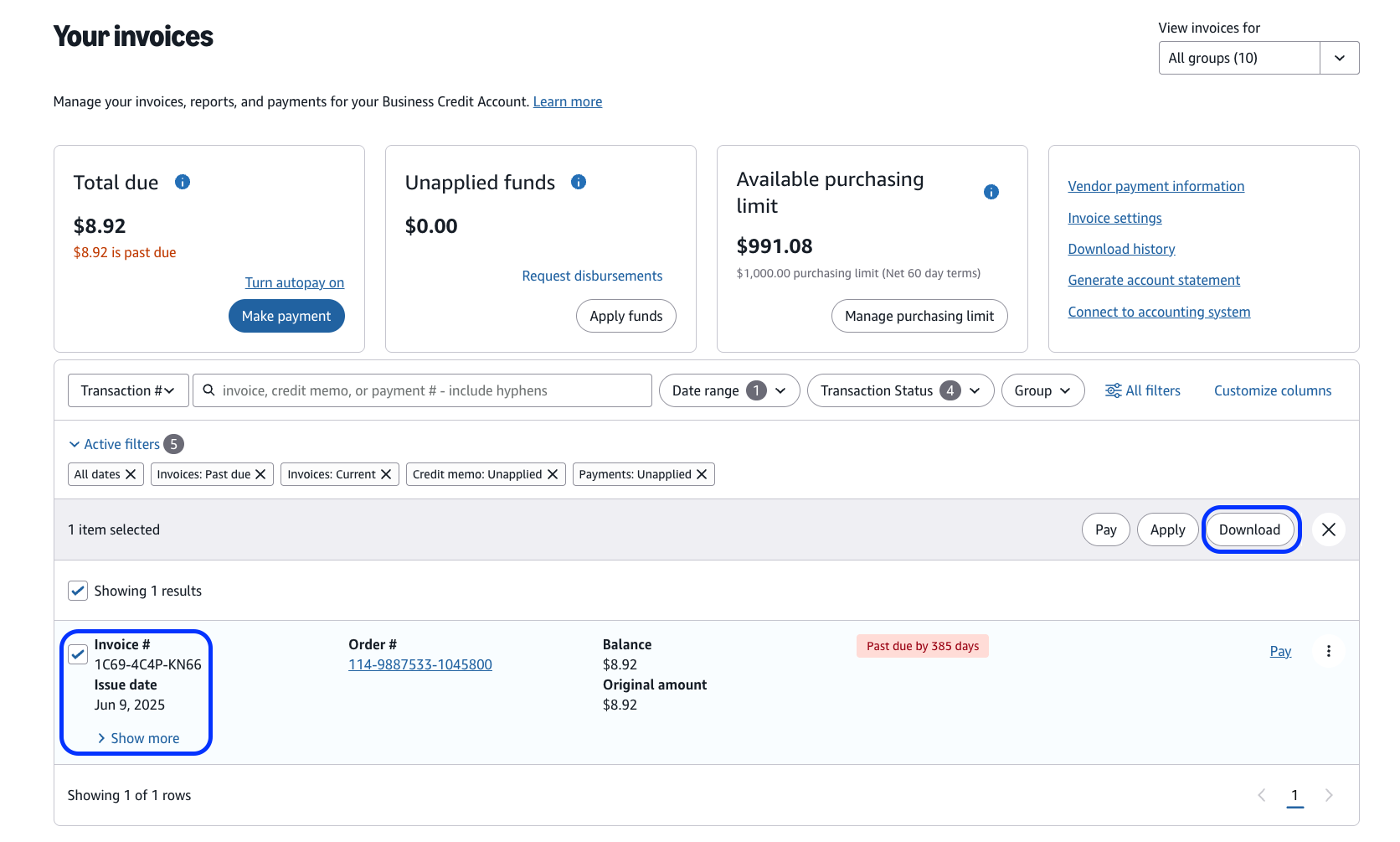
Your invoices: This page displays invoices and credit memos, invoice status, purchasing limit, the total amount due, and any unapplied funds. You can download invoices and credit memos from the last five years in bulk, with every 2,000 documents automatically packaged in separate zip files. To access Your invoices and download order documents:
In Business Settings, select Your invoices.
Select the desired invoices in the transaction table.
Select Download at the top to download all selected invoices at once.
Note: Invoices from third-party sellers are not available for bulk download. Download them individually.
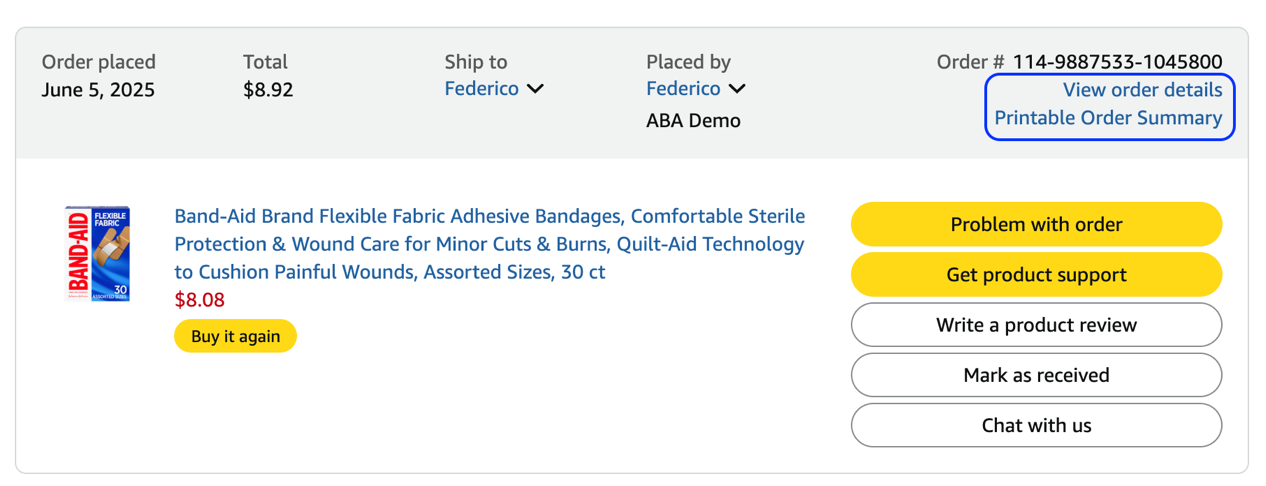
Your Orders: View your orders or orders within your group. For each order, you can access a printable order summary document (US) or VAT invoice (EU), containing details such as the order line items, quantity, seller, price, and payment method. To access Your orders and download order documents:
From the Amazon Business home page, select Returns & orders.
For the desired order, select Printable order summary. The printable order summary PDF document displays.
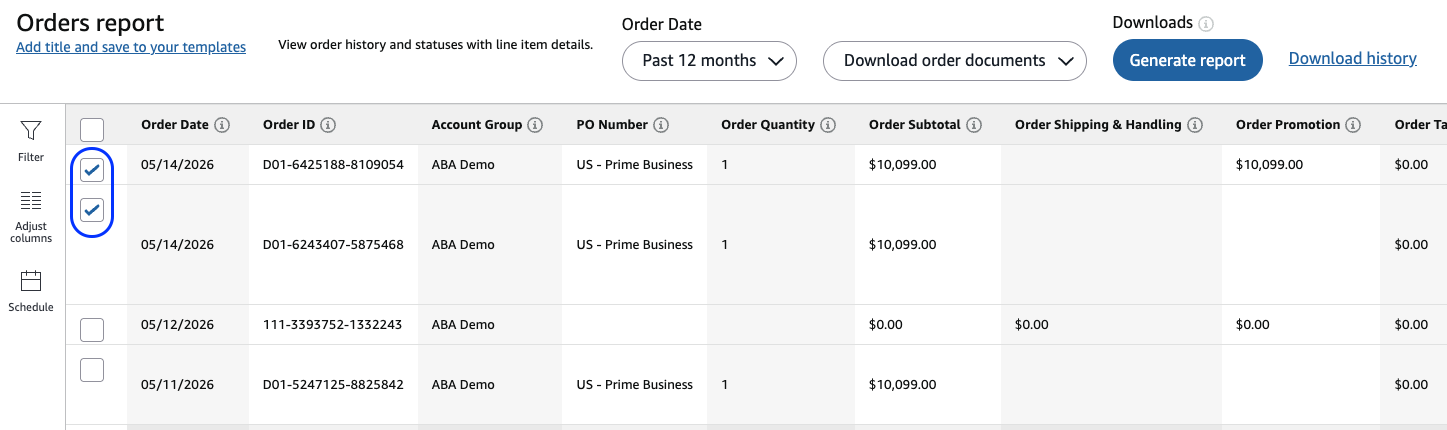
Amazon Business Analytics reports: In Business Analytics, you can download order documents associated with order line items, such as BCA invoices, printable order summaries (US), and VAT invoices (EU). You can download up to 2,000 documents at a time. To download order documents:
From the Amazon Business home page, select Business analytics > Reports > In the dropdown, select the Orders, Business Credit Account, or Reconciliation reports.
Filter orders to the desired date and time.
Select the desired orders > Select Download order documents. Optionally, select Download all to download order documents for all orders in the filtered time range.
2. Compare transaction data
After gathering reconciliation data from Amazon Business, compare the data in your order documents and reports with transactions and line items in your accounting system.
To match transactions to each line item, use a payment identifier column in the Amazon Business Analytics Orders, Reconciliation, and BCA reports. For credit card payments, use the Charge Identifier column. This identifier is a unique value printed in the transaction description of each charge on a credit card statement. For BCA payments, use the Invoice ID or PO number columns. These fields are unique values assigned to each invoice. Based on your payment method, use the appropriate identifier to match each charge on your credit card statement or invoice to a line item. See an example below showing how the Charge Identifier on a credit card statement maps to a report line item:
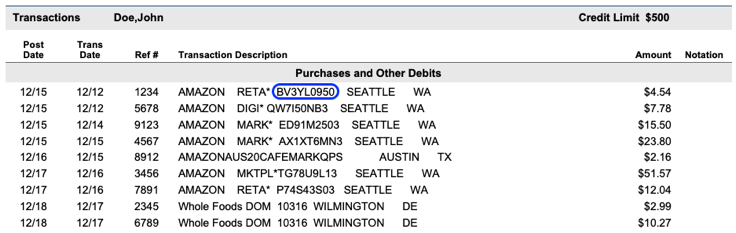
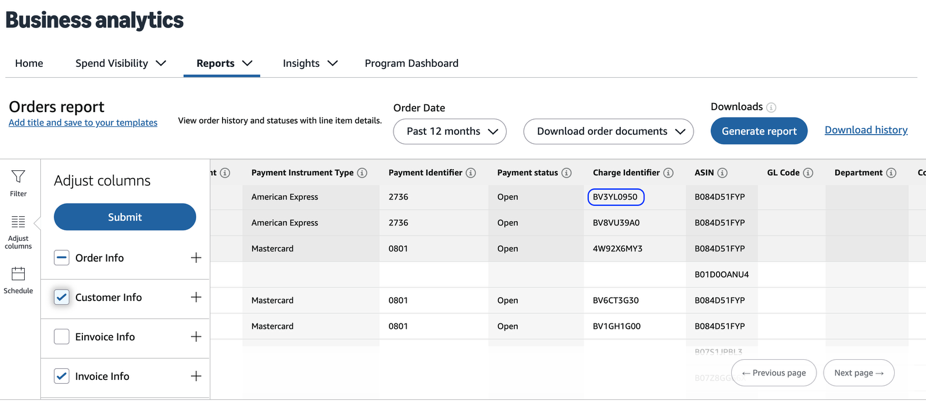
To use a payment identifier to locate the Amazon Business orders and line items associated with a charge on your statement, follow these steps:
In the desired report, select Adjust columns.
Enable the appropriate payment identifier field for your payment type:
BCA payments: Enable Invoice ID or PO number.
Credit card payments: Enable Charge identifier in Payment info. Note: Charge Identifier is enabled by default in the Reconciliation report.
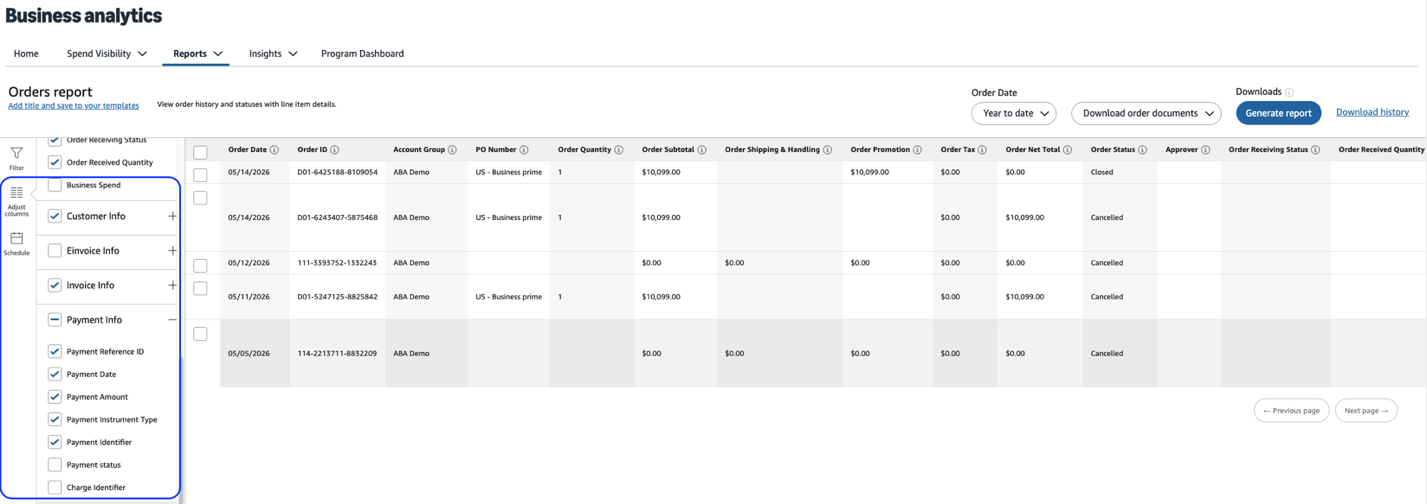
Select Submit.
Select Filter > In the list of filters, select your payment identifier.
Enter the desired payment ID value as the filter.
Select Submit.
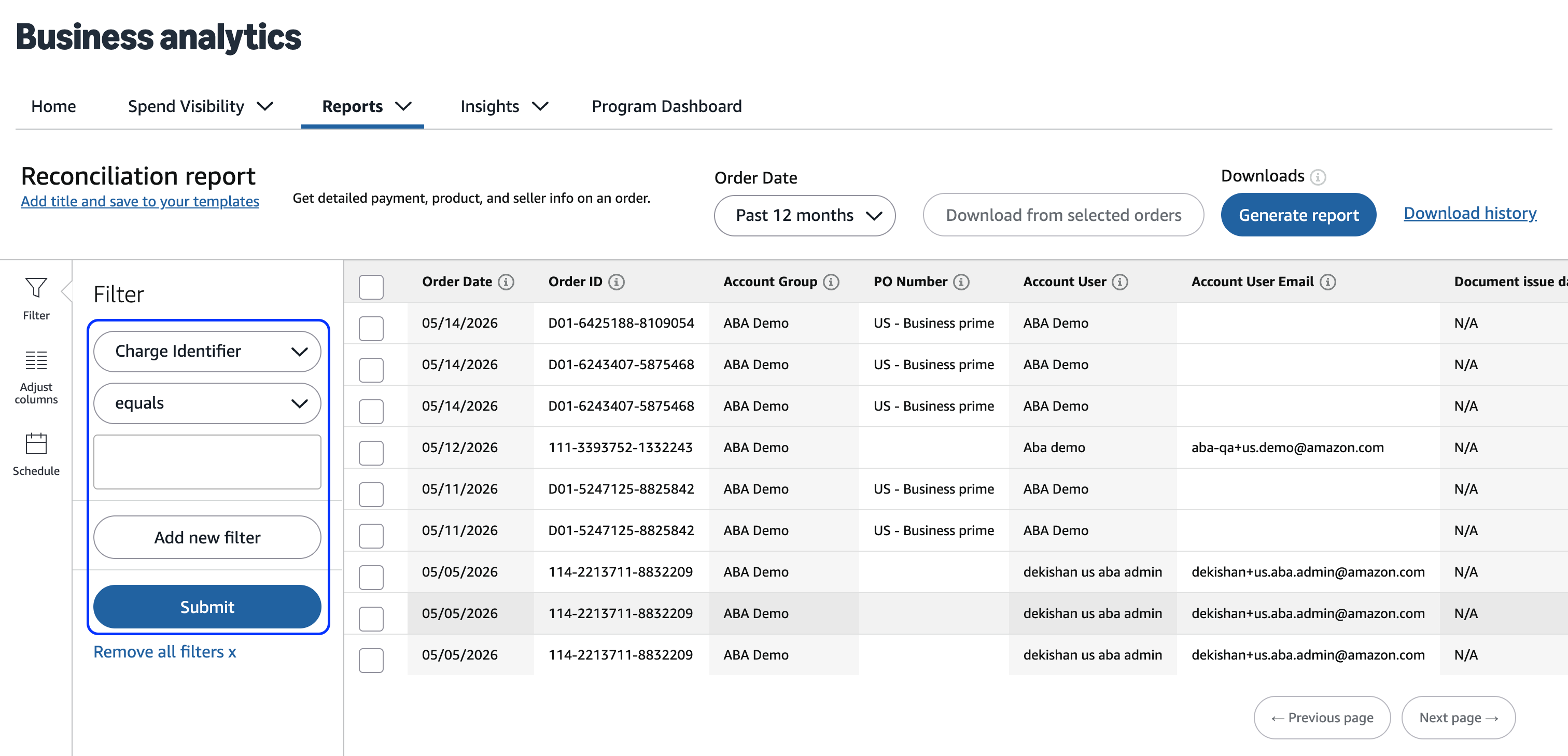
After applying the payment identifier filter, the report only displays transactions associated with the specified identifier. You can then filter by the Order ID or PO line item ID columns to match all orders and individual line items associated with a charge on your credit card statement.
3. Resolve discrepancies
After matching transactions, you may identify discrepancies between the Amazon Business reconciliation data and your accounting system. Based on the issue, note the following best practices to understand the Amazon Business charge and resolve discrepancies in your system:
Unknown charge matching
In some cases, charges on an invoice or credit card statement might not match the total value of your orders. Possible reasons include:
Multiple shipments: Amazon Business charges your payment method once the items ship. An order with multiple shipments over multiple days will result in multiple charges.
Multiple addresses: The order was sent to multiple addresses, resulting in multiple charges.
Shipment consolidation: Amazon Business may consolidate shipments occurred on the same day into a single charge.
Authorization: The charge you’re seeing is an authorization from your lending institution.
Buyer identity: The charge was related to a purchase by someone else with access to the payment method in your organization.
To reconcile these discrepancies, check the Orders and Reconciliation reports for explicit details about each charge. After using the Charge identifier or Payment reference ID to locate the charge, check additional columns such as the buyer, purchase order number, delivery information, and product data to understand the charge source and reason.
Mismatched invoice totals
Sometimes, an order total for a given time frame might not match the invoice total for the same period. This behavior is expected because report date ranges are based on the date a document was issued, not the invoice date. You can resolve this discrepancy by reviewing the Business Credit Account report, setting the date range to one year or more, and filtering results by the statement number. This process helps confirm that the report displays all transactions for a billing period.
BOI fields
When you require your buyers to define BOI fields during checkout, you can use these fields to match each expense between Amazon Business and your accounting system. BOI fields populate in the following surfaces across your business account:
Your Orders: BOI is displayed at the purchase level on Order Details and Printable Order Summary (POS).
Your Invoices: All BOI fields configured display in purchase-level PDF invoices. If you have cXML e-Invoicing enabled, BOI fields are included at the shipment level.
Business Analytics reports: All BOI fields display as columns in the Orders, Shipments, Refunds, and Reconciliation reports.
L3 transaction data: BOI is included in L3 cXML data passed from Amazon Business to financial institutions.
Shipping Labels and Packing Slips: The purchase order number displays on shipping labels and physical packing slips. All BOI fields associated with the purchase display on electronic packing slips accessible from the Your Orders page.
When this information is included in your reports, you can use it to easily match each row of the report to a transaction in your invoice or credit card statement.
Mismatched charges or credits
The following cases produce charges or credits that do not equal the order total you approved. Each one shows up in your reconciliation data in a predictable place:
Partial shipments: Amazon Business charges your payment method when items ship. An order that ships in several parts creates several charges, each smaller than the order total. In the Orders and Reconciliation reports, filter by Order ID to see every shipment and charge for that order. The shipment-level rows sum to the order total. For card payments, each shipment carries its own Charge Identifier and appears as a separate line on your statement. For BCA, each shipment is invoiced when it ships, so one order can appear on more than one invoice. Match at the shipment or invoice line level. Order-level totals will not tie until every shipment has posted.
Returns and refunds: When an item is returned, Amazon Business refunds the payment method used for the order:
Card payments: The refund posts to the same card used for the order as a credit. The refund appears in the Refunds and Reconciliation reports at line-item level. Refunds carry the original Order ID, so filter by Order ID to pair the credit with the original charge. Card credits do not print a Charge Identifier, so match them in your reports using the order ID, amount, and date.
BCA payments: The refund is issued as a credit memo. By default, the credit memo is applied automatically to any open balance on the original invoice. An account administrator can change this setting, and the change applies to the next credit memo issued. Credit memos are emailed to your invoice delivery address and listed on Your invoices. If the original invoice was already paid, the credit memo shows as unapplied funds until it is applied to another invoice or refunded. Track refund status on the Payments and Refunds tab in Your invoices. Refunds take 5 to 10 business days to reach your bank account.
Credits and price adjustments: Concessions such as a price adjustment or a goodwill credit follow the same path as a refund: a card credit for card orders, a credit memo for BCA orders. These concessions reference the original Order ID, so reconcile them against the original charge or invoice. They are never standalone transactions.
Tax adjustments: If your organization is tax exempt but tax was charged on an order (for example, a buyer outside your ATEP enrollment or a third-party seller that does not honor the exemption), the refunded tax appears as a separate credit against the original order after you request it. To keep this from recurring, confirm your ATEP enrollment covers all the groups that purchase, and require buyers to select the exempt option at checkout.
Automation and ERP integration
Amazon Business provides two methods for automating reconciliation data and integrating with your Enterprise Resource Planning (ERP) systems:
Build your own integration using Reconciliation API.
Use an existing integration provided by a third-party Amazon Business partner.
Custom API integration
If you have in-house developer capacity, you can integrate directly with the Reconciliation API so your data feeds into your own dashboard or system. With this custom development, your system can automatically pull line-level transaction information without having to manually gather it from Amazon Business. To integrate with Reconciliation API, follow these steps:
Request access to Amazon Business APIs. To submit your request, follow the steps in Amazon Business API Onboarding Overview.
After gaining access, follow the Reconciliation API developer guide to build your integration. Use the
getTransactionsoperation to receive line-level data for each business transaction in the specified time range. Use thegetInvoiceDetailsByOrderLineItemsoperation to retrieve the invoice ID for an order line item. For full specifications, review the Reconciliation API v1 reference.
Third-party integrations
You can access pre-built integrations with Amazon Business APIs on the Amazon Business App Center (App Center). To access App Center and integrate with a third-party partner application:
Sign in to Amazon Business.
Open the Your account dropdown menu.
Select Business settings.
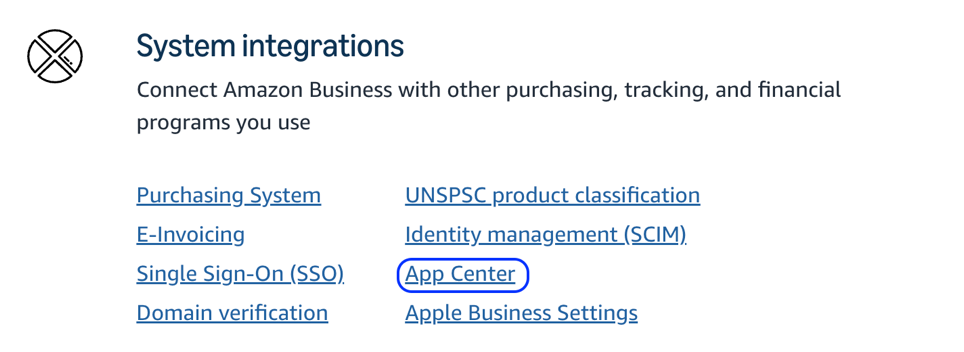
Under System integrations, select App Center.
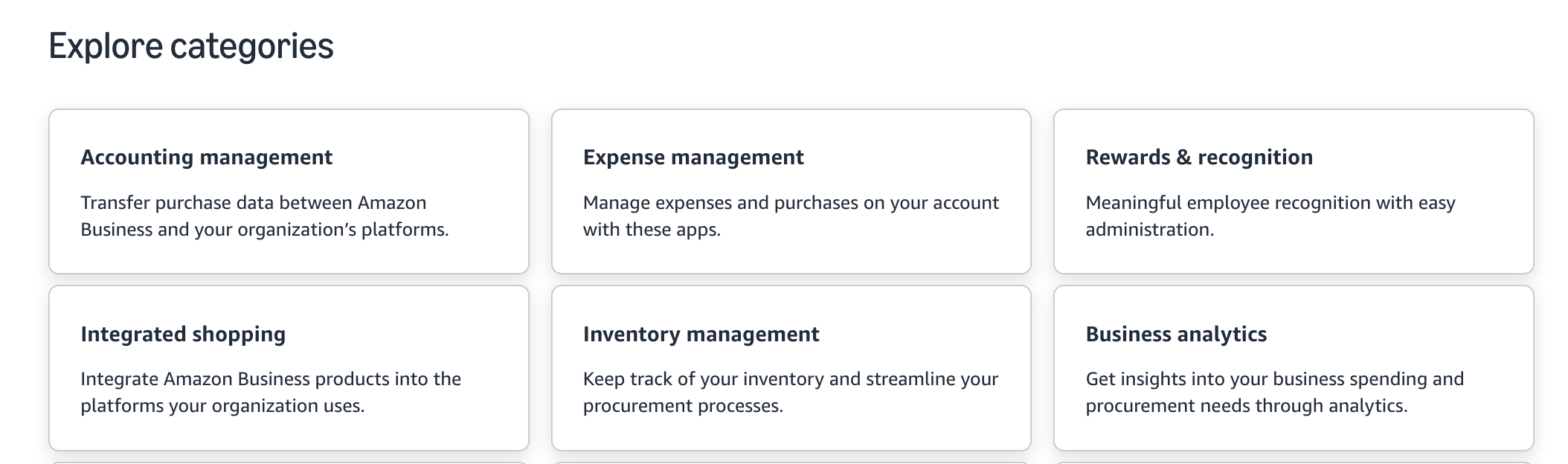
In the App Center, select a category such as Accounting management.
In the list of apps, select an app you’d like to connect to your business account.
On the app details page, select Connect app.
Note: Only admins can connect apps. Ensure you are signed in to an account with admin permissions.
Follow the flow on the partner’s app to sign in to the app. When prompted, grant consent to Amazon Business.
Once you’ve connected to the partner app, the app will start receiving your account information programmatically using Amazon Business APIs. With this integration, you can use your Amazon Business reconciliation data directly in your preferred application.
See the following frequently asked questions about common Amazon Business reconciliation topics:
Charge matching
Refunds and credit memos
Balances and payment application
Invoice access and delivery
Reconciliation reporting
Invoice content or PO mismatches
Get started today
Was this helpful?




 United States
 India
India United Kingdom
 France
 Germany
 Spain
Spain Italy
Italy Canada
 Japan
Japan Mexico
 Australia


